Nodejs 2018
download nodejs from:
https://nodejs.org/en/download/
windows installer 64bit msi and installed it.
create a folder nodejs in desktop
create app.js inside the folder.
app.js:
for (var i = 1; i<=10; i++) {
console.log("Hello Node");
}
Go to folder nodejs where your file app.js is there. Click shift+click to open command window here.
Enter: node app.js
You will get output:
Hello Node
Hello Node
Hello Node
Hello Node
Hello Node
Hello Node
Hello Node
Hello Node
Hello Node
Hello Node
app.js:
for (var i = 1; i<=10; i++) {
if(i%2==0){
console.log("Hello Node" + " " +i);
}
}
Hello Node 2
Hello Node 4
Hello Node 6
Hello Node 8
Hello Node 10
____________________________
setInterval(function(){
var date = new Date();
console.log(date.getHours() + ":" + date.getMinutes() + ":" + date.getSeconds());
},1000);
This will give you time.
-------
setInterval(function(){
console.log("First");
var date = new Date();
console.log(date.getHours() + ":" + date.getMinutes() + ":" + date.getSeconds());
},1000);
setInterval(function(){
console.log("Second");
var date = new Date();
console.log(date.getHours() + ":" + date.getMinutes() + ":" + date.getSeconds());
},2000);
Now let's create our own server:
Create a file server.js inside the main folder.
var http=require("http");
console.log("Http Server is running...at 3000");
http.createServer(function(req,res){
res.write("<h1>Hello node</h1>");
res.end();
}).listen(3000);
first run server.js in cmd prompt: node server.js
now if you enter localhost:3000 in browser
output will be Hello node
----------------
Now let's read and write file using node:
var fs = require("fs");
console.log("Going to write into existing file");
fs.writeFile('input.txt', 'Simply Easy Learning!', function(err) {
if (err) {
return console.error(err);
}
console.log("Data written successfully!");
console.log("Let's read newly written data");
fs.readFile('input.txt', function (err, data) {
if (err) {
return console.error(err);
}
console.log("Asynchronous read: " + data.toString());
});
});
This will create a file: input.txt and write something there, and also read the data from the file.
Going to write into existing file
Data written successfully!
Let's read newly written data
Asynchronous read: Simply Easy Learning!
if you open input.txt using:
type input.txt
the output will be Simple Easy Learning
You can write something else using var.
Eg:
var fs = require("fs");
console.log("Going to write into existing file");
var myContent = "This is easy way of learning nodejs."
fs.writeFile('input.txt', myContent, function(err) {
if (err) {
return console.error(err);
}
console.log("Data written successfully!");
console.log("Let's read newly written data");
fs.readFile('input.txt', function (err, data) {
if (err) {
return console.error(err);
}
console.log("Asynchronous read: " + data.toString());
});
});
----------------------
Now create a folder inside nodejs folder.
Inside nodejs, create a file: server.js
Inside hosting folder create a folder public
Inside public create a folder assets
Inside assets, create two folders css and js
now,
server.js
var http=require("http")
function HttpServer(port){
var obj=this;
obj.start=function(){
console.log("Server is running at " + port);
http.createServer(function(req,res){
console.log(req.url);
}).listen(port);
}
return obj;
}
new HttpServer(3000).start();
This will start new localhost in 3000.
Go to the folder where server.js resides and start command prompt.
node server.js enter
The output will be
server is running at port 3000.
Now go to browser and enter localhost:3000 and enter
the output at command prompt is /
again enter the browser url
the output will be / again
Now in browser enter localhost:3000/index.html
the output will be /index.html
Now let's say you want to know the GET or POST method.
For this:
var http=require("http")
function HttpServer(port){
var obj=this;
obj.start=function(){
console.log("Server is running at " + port);
http.createServer(function(req,res){
console.log(req.method);
}).listen(port);
}
return obj;
}
new HttpServer(3000).start();
Start server.js.
Enter localhost:3000 in browser.
The output will be: GET
Now let's say when the method is GET, we want some action to be performed.
Desktop\nodejsapp\hosting\public\index.html
<!DOCTYPE html>
<html>
<head>
<title>Web Page from Node Server</title>
<link rel="stylesheet" type="text/css" href="assets/css/style.css">
<script src="https://ajax.googleapis.com/ajax/libs/angularjs/1.5.6/angular.min.js"></script>
</head>
<body ng-app="">
<div>10+20={{10+20}}</div>
</body>
</html>
Desktop\nodejsapp\hosting\server.js
var http=require("http");
var fs = require("fs");
var path = require("path");
function HttpServer(port){
var obj=this;
obj.start=function(){
console.log("Server is running at " + port);
http.createServer(function(req,res){
switch(req.method){
case "GET":
obj.doGet(req,res);
break;
case "POST":
break;
}
}).listen(port);
}
obj.doGet=function(req,res){
var filePath = path.join(__dirname, 'public/'+req.url);
fs.stat(filePath,function(err,stat){
if(err == null){
var stat = fs.statSync(filePath);
var readStream = fs.createReadStream(filePath).pipe(res);
}
});
}
return obj;
}
new HttpServer(3000).start();
Desktop\nodejsapp\hosting\public\assets\css\style.css
body{
background: red;
}
Now when you open: http://localhost:3000/index.html
The output will be red background with 10+20 = 30
Here server.js is inside hosting. Inside hosting folder there is public folder and server.js.
So server.js will take any request from public folder based on this:
var filePath = path.join(__dirname, 'public/'+req.url); from server.js
So if the request is index.html, It will load css file accoarding to:
href="assets/css/style.css" from index.html
Now create controllers folder.
Desktop\nodejsapp\hosting\public\assets\js\controllers\HomeController.js
app.controller("HomeController",function($scope){
$scope.title="Angular + Node js";
});
index.html
<!DOCTYPE html>
<html>
<head>
<title>Web Page from Node Server</title>
<link rel="stylesheet" type="text/css" href="assets/css/style.css">
<script src="https://ajax.googleapis.com/ajax/libs/angularjs/1.5.6/angular.min.js"></script>
</head>
<body ng-app="myapp">
<div ng-controller = "HomeController">
<h1>{{title}}</h1>
</div>
<script>
var app=angular.module("myapp",[]);
</script>
<script src="assets/js/controllers/HomeController.js"></script>
</body>
</html>
------------
Node JS Web Module
https://nodejs.org/en/download/
windows installer 64bit msi and installed it.
create a folder nodejs in desktop
create app.js inside the folder.
app.js:
for (var i = 1; i<=10; i++) {
console.log("Hello Node");
}
Go to folder nodejs where your file app.js is there. Click shift+click to open command window here.
Enter: node app.js
You will get output:
Hello Node
Hello Node
Hello Node
Hello Node
Hello Node
Hello Node
Hello Node
Hello Node
Hello Node
Hello Node
app.js:
for (var i = 1; i<=10; i++) {
if(i%2==0){
console.log("Hello Node" + " " +i);
}
}
Hello Node 2
Hello Node 4
Hello Node 6
Hello Node 8
Hello Node 10
____________________________
setInterval(function(){
var date = new Date();
console.log(date.getHours() + ":" + date.getMinutes() + ":" + date.getSeconds());
},1000);
This will give you time.
-------
setInterval(function(){
console.log("First");
var date = new Date();
console.log(date.getHours() + ":" + date.getMinutes() + ":" + date.getSeconds());
},1000);
setInterval(function(){
console.log("Second");
var date = new Date();
console.log(date.getHours() + ":" + date.getMinutes() + ":" + date.getSeconds());
},2000);
Now let's create our own server:
Create a file server.js inside the main folder.
var http=require("http");
console.log("Http Server is running...at 3000");
http.createServer(function(req,res){
res.write("<h1>Hello node</h1>");
res.end();
}).listen(3000);
first run server.js in cmd prompt: node server.js
now if you enter localhost:3000 in browser
output will be Hello node
----------------
Now let's read and write file using node:
var fs = require("fs");
console.log("Going to write into existing file");
fs.writeFile('input.txt', 'Simply Easy Learning!', function(err) {
if (err) {
return console.error(err);
}
console.log("Data written successfully!");
console.log("Let's read newly written data");
fs.readFile('input.txt', function (err, data) {
if (err) {
return console.error(err);
}
console.log("Asynchronous read: " + data.toString());
});
});
This will create a file: input.txt and write something there, and also read the data from the file.
Going to write into existing file
Data written successfully!
Let's read newly written data
Asynchronous read: Simply Easy Learning!
if you open input.txt using:
type input.txt
the output will be Simple Easy Learning
You can write something else using var.
Eg:
var fs = require("fs");
console.log("Going to write into existing file");
var myContent = "This is easy way of learning nodejs."
fs.writeFile('input.txt', myContent, function(err) {
if (err) {
return console.error(err);
}
console.log("Data written successfully!");
console.log("Let's read newly written data");
fs.readFile('input.txt', function (err, data) {
if (err) {
return console.error(err);
}
console.log("Asynchronous read: " + data.toString());
});
});
----------------------
Now create a folder inside nodejs folder.
Inside nodejs, create a file: server.js
Inside hosting folder create a folder public
Inside public create a folder assets
Inside assets, create two folders css and js
now,
server.js
var http=require("http")
function HttpServer(port){
var obj=this;
obj.start=function(){
console.log("Server is running at " + port);
http.createServer(function(req,res){
console.log(req.url);
}).listen(port);
}
return obj;
}
new HttpServer(3000).start();
This will start new localhost in 3000.
Go to the folder where server.js resides and start command prompt.
node server.js enter
The output will be
server is running at port 3000.
Now go to browser and enter localhost:3000 and enter
the output at command prompt is /
again enter the browser url
the output will be / again
Now in browser enter localhost:3000/index.html
the output will be /index.html
Now let's say you want to know the GET or POST method.
For this:
var http=require("http")
function HttpServer(port){
var obj=this;
obj.start=function(){
console.log("Server is running at " + port);
http.createServer(function(req,res){
console.log(req.method);
}).listen(port);
}
return obj;
}
new HttpServer(3000).start();
Start server.js.
Enter localhost:3000 in browser.
The output will be: GET
Now let's say when the method is GET, we want some action to be performed.
Desktop\nodejsapp\hosting\public\index.html
<!DOCTYPE html>
<html>
<head>
<title>Web Page from Node Server</title>
<link rel="stylesheet" type="text/css" href="assets/css/style.css">
<script src="https://ajax.googleapis.com/ajax/libs/angularjs/1.5.6/angular.min.js"></script>
</head>
<body ng-app="">
<div>10+20={{10+20}}</div>
</body>
</html>
Desktop\nodejsapp\hosting\server.js
var http=require("http");
var fs = require("fs");
var path = require("path");
function HttpServer(port){
var obj=this;
obj.start=function(){
console.log("Server is running at " + port);
http.createServer(function(req,res){
switch(req.method){
case "GET":
obj.doGet(req,res);
break;
case "POST":
break;
}
}).listen(port);
}
obj.doGet=function(req,res){
var filePath = path.join(__dirname, 'public/'+req.url);
fs.stat(filePath,function(err,stat){
if(err == null){
var stat = fs.statSync(filePath);
var readStream = fs.createReadStream(filePath).pipe(res);
}
});
}
return obj;
}
new HttpServer(3000).start();
Desktop\nodejsapp\hosting\public\assets\css\style.css
body{
background: red;
}
Now when you open: http://localhost:3000/index.html
The output will be red background with 10+20 = 30
Here server.js is inside hosting. Inside hosting folder there is public folder and server.js.
So server.js will take any request from public folder based on this:
var filePath = path.join(__dirname, 'public/'+req.url); from server.js
So if the request is index.html, It will load css file accoarding to:
href="assets/css/style.css" from index.html
Now create controllers folder.
Desktop\nodejsapp\hosting\public\assets\js\controllers\HomeController.js
app.controller("HomeController",function($scope){
$scope.title="Angular + Node js";
});
index.html
<!DOCTYPE html>
<html>
<head>
<title>Web Page from Node Server</title>
<link rel="stylesheet" type="text/css" href="assets/css/style.css">
<script src="https://ajax.googleapis.com/ajax/libs/angularjs/1.5.6/angular.min.js"></script>
</head>
<body ng-app="myapp">
<div ng-controller = "HomeController">
<h1>{{title}}</h1>
</div>
<script>
var app=angular.module("myapp",[]);
</script>
<script src="assets/js/controllers/HomeController.js"></script>
</body>
</html>
------------
Node Package Manager (NPM) provides two main functionalities −
- Online repositories for node.js packages/modules which are searchable on search.nodejs.org
- Command line utility to install Node.js packages, do version management and dependency management of Node.js packages.
NPM comes bundled with Node.js installables after v0.6.3 version. To verify the same, open console and type the following command and see the result −
$ npm --version
2.7.1
If you are running an old version of NPM then it is quite easy to update it to the latest version. Just use the following command from root −
$ sudo npm install npm -g
/usr/bin/npm -> /usr/lib/node_modules/npm/bin/npm-cli.js
npm@2.7.1 /usr/lib/node_modules/npm
Installing Modules using NPM
There is a simple syntax to install any Node.js module −
$ npm install <Module Name>
For example, following is the command to install a famous Node.js web framework module called express −
$ npm install express
Now you can use this module in your js file as following −
var express = require('express');
Global vs Local Installation
By default, NPM installs any dependency in the local mode. Here local mode refers to the package installation in node_modules directory lying in the folder where Node application is present. Locally deployed packages are accessible via require() method. For example, when we installed express module, it created node_modules directory in the current directory where it installed the express module.
$ ls -l
total 0
drwxr-xr-x 3 root root 20 Mar 17 02:23 node_modules
Alternatively, you can use npm ls command to list down all the locally installed modules.
Globally installed packages/dependencies are stored in system directory. Such dependencies can be used in CLI (Command Line Interface) function of any node.js but cannot be imported using require() in Node application directly. Now let's try installing the express module using global installation.
$ npm install express -g
This will produce a similar result but the module will be installed globally. Here, the first line shows the module version and the location where it is getting installed.
You can use the following command to check all the modules installed globally −
$ npm ls -g
Using package.json
package.json is present in the root directory of any Node application/module and is used to define the properties of a package. Let's open package.json of express package present in node_modules/express/
{
   "name": "express",
      "description": "Fast, unopinionated, minimalist web framework",
      "version": "4.11.2",
      "author": {

         "name": "TJ Holowaychuk",
         "email": "tj@vision-media.ca"
      },

   "contributors": [{
      "name": "Aaron Heckmann",
      "email": "aaron.heckmann+github@gmail.com"
   },

   {
      "name": "Ciaran Jessup",
      "email": "ciaranj@gmail.com"
   },

   {
      "name": "Douglas Christopher Wilson",
      "email": "doug@somethingdoug.com"
   },

   {
      "name": "Guillermo Rauch",
      "email": "rauchg@gmail.com"
   },

   {
      "name": "Jonathan Ong",
      "email": "me@jongleberry.com"
   },

   {
      "name": "Roman Shtylman",
      "email": "shtylman+expressjs@gmail.com"
   },

   {
      "name": "Young Jae Sim",
      "email": "hanul@hanul.me"
   } ],
   "license": "MIT", "repository": {
      "type": "git",
      "url": "https://github.com/strongloop/express"
   },
   "homepage": "https://expressjs.com/", "keywords": [
      "express",
      "framework",
      "sinatra",
      "web",
      "rest",
      "restful",
      "router",
      "app",
      "api"
   ],
   "dependencies": {
      "accepts": "~1.2.3",
      "content-disposition": "0.5.0",
      "cookie-signature": "1.0.5",
      "debug": "~2.1.1",
      "depd": "~1.0.0",
      "escape-html": "1.0.1",
      "etag": "~1.5.1",
      "finalhandler": "0.3.3",
      "fresh": "0.2.4",
      "media-typer": "0.3.0",
      "methods": "~1.1.1",
      "on-finished": "~2.2.0",
      "parseurl": "~1.3.0",
      "path-to-regexp": "0.1.3",
      "proxy-addr": "~1.0.6",
      "qs": "2.3.3",
      "range-parser": "~1.0.2",
      "send": "0.11.1",
      "serve-static": "~1.8.1",
      "type-is": "~1.5.6",
      "vary": "~1.0.0",
      "cookie": "0.1.2",
      "merge-descriptors": "0.0.2",
      "utils-merge": "1.0.0"
   },
   "devDependencies": {
      "after": "0.8.1",
      "ejs": "2.1.4",
      "istanbul": "0.3.5",
      "marked": "0.3.3",
      "mocha": "~2.1.0",
      "should": "~4.6.2",
      "supertest": "~0.15.0",
      "hjs": "~0.0.6",
      "body-parser": "~1.11.0",
      "connect-redis": "~2.2.0",
      "cookie-parser": "~1.3.3",
      "express-session": "~1.10.2",
      "jade": "~1.9.1",
      "method-override": "~2.3.1",
      "morgan": "~1.5.1",
      "multiparty": "~4.1.1",
      "vhost": "~3.0.0"
   },
   "engines": {
      "node": ">= 0.10.0"
   },
   "files": [
      "LICENSE",
      "History.md",
      "Readme.md",
      "index.js",
      "lib/"
   ],
   "scripts": {
      "test": "mocha --require test/support/env
         --reporter spec --bail --check-leaks test/ test/acceptance/",
      "test-cov": "istanbul cover node_modules/mocha/bin/_mocha
         -- --require test/support/env --reporter dot --check-leaks test/ test/acceptance/",
      "test-tap": "mocha --require test/support/env
         --reporter tap --check-leaks test/ test/acceptance/",
      "test-travis": "istanbul cover node_modules/mocha/bin/_mocha
         --report lcovonly -- --require test/support/env
         --reporter spec --check-leaks test/ test/acceptance/"
   },
   "gitHead": "63ab25579bda70b4927a179b580a9c580b6c7ada",
   "bugs": {
      "url": "https://github.com/strongloop/express/issues"
   },
   "_id": "express@4.11.2",
   "_shasum": "8df3d5a9ac848585f00a0777601823faecd3b148",
   "_from": "express@*",
   "_npmVersion": "1.4.28",
   "_npmUser": {
      "name": "dougwilson",
      "email": "doug@somethingdoug.com"
   },
   "maintainers": [
      {
         "name": "tjholowaychuk",
         "email": "tj@vision-media.ca"
      },
      {
         "name": "jongleberry",
         "email": "jonathanrichardong@gmail.com"
      },
      {
         "name": "shtylman",
         "email": "shtylman@gmail.com"
      },
      {
         "name": "dougwilson",
         "email": "doug@somethingdoug.com"
      },
      {
         "name": "aredridel",
         "email": "aredridel@nbtsc.org"
      },
      {
         "name": "strongloop",
         "email": "callback@strongloop.com"
      },
      {
         "name": "rfeng",
         "email": "enjoyjava@gmail.com"
      }
   ],
   "dist": {
      "shasum": "8df3d5a9ac848585f00a0777601823faecd3b148",
      "tarball": "https://registry.npmjs.org/express/-/express-4.11.2.tgz"
   },
   "directories": {},
      "_resolved": "https://registry.npmjs.org/express/-/express-4.11.2.tgz",
      "readme": "ERROR: No README data found!"
}
Attributes of Package.json
- name − name of the package
- version − version of the package
- description − description of the package
- homepage − homepage of the package
- author − author of the package
- contributors − name of the contributors to the package
- dependencies − list of dependencies. NPM automatically installs all the dependencies mentioned here in the node_module folder of the package.
- repository − repository type and URL of the package
- main − entry point of the package
- keywords − keywords
Uninstalling a Module
Use the following command to uninstall a Node.js module.
$ npm uninstall express
Once NPM uninstalls the package, you can verify it by looking at the content of /node_modules/ directory or type the following command −
$ npm ls
Updating a Module
Update package.json and change the version of the dependency to be updated and run the following command.
$ npm update express
Search a Module
Search a package name using NPM.
$ npm search express
Create a Module
Creating a module requires package.json to be generated. Let's generate package.json using NPM, which will generate the basic skeleton of the package.json.
$ npm init
This utility will walk you through creating a package.json file.
It only covers the most common items, and tries to guess sane defaults.

See 'npm help json' for definitive documentation on these fields
and exactly what they do.

Use 'npm install <pkg> --save' afterwards to install a package and
save it as a dependency in the package.json file.

Press ^C at any time to quit.
name: (webmaster)
You will need to provide all the required information about your module. You can take help from the above-mentioned package.json file to understand the meanings of various information demanded. Once package.json is generated, use the following command to register yourself with NPM repository site using a valid email address.
$ npm adduser
Username: mcmohd
Password:
Email: (this IS public) mcmohd@gmail.com
It is time now to publish your module −
$ npm publish
If everything is fine with your module, then it will be published in the repository and will be accessible to install using NPM like any other Node.js module.
What is Callback?
Callback is an asynchronous equivalent for a function. A callback function is called at the completion of a given task. Node makes heavy use of callbacks. All the APIs of Node are written in such a way that they support callbacks.
For example, a function to read a file may start reading file and return the control to the execution environment immediately so that the next instruction can be executed. Once file I/O is complete, it will call the callback function while passing the callback function, the content of the file as a parameter. So there is no blocking or wait for File I/O. This makes Node.js highly scalable, as it can process a high number of requests without waiting for any function to return results.
Blocking Code Example
Create a text file named input.txt with the following content −
Tutorials Point is giving self learning content
to teach the world in simple and easy way!!!!!
Create a js file named main.js with the following code −
var fs = require("fs");

var data = fs.readFileSync('input.txt');

console.log(data.toString());
console.log("Program Ended");
Now run the main.js to see the result −
$ node main.js
Verify the Output.
Tutorials Point is giving self learning content
to teach the world in simple and easy way!!!!!
Program Ended
Non-Blocking Code Example
Create a text file named input.txt with the following content.
Tutorials Point is giving self learning content
to teach the world in simple and easy way!!!!!
Update main.js to have the following code −
var fs = require("fs");

fs.readFile('input.txt', function (err, data) {
   if (err) return console.error(err);
   console.log(data.toString());
});

console.log("Program Ended");
Now run the main.js to see the result −
$ node main.js
Verify the Output.
Program Ended
Tutorials Point is giving self learning content
to teach the world in simple and easy way!!!!!
These two examples explain the concept of blocking and non-blocking calls.
- The first example shows that the program blocks until it reads the file and then only it proceeds to end the program.
- The second example shows that the program does not wait for file reading and proceeds to print "Program Ended" and at the same time, the program without blocking continues reading the file.
Thus, a blocking program executes very much in sequence. From the programming point of view, it is easier to implement the logic but non-blocking programs do not execute in sequence. In case a program needs to use any data to be processed, it should be kept within the same block to make it sequential execution.
What are Streams?
Streams are objects that let you read data from a source or write data to a destination in continuous fashion. In Node.js, there are four types of streams −
- Readable − Stream which is used for read operation.
- Writable − Stream which is used for write operation.
- Duplex − Stream which can be used for both read and write operation.
- Transform − A type of duplex stream where the output is computed based on input.
Each type of Stream is an EventEmitter instance and throws several events at different instance of times. For example, some of the commonly used events are −
- data − This event is fired when there is data is available to read.
- end − This event is fired when there is no more data to read.
- error − This event is fired when there is any error receiving or writing data.
- finish − This event is fired when all the data has been flushed to underlying system.
This tutorial provides a basic understanding of the commonly used operations on Streams.
Reading from a Stream
Create a text file named input.txt having the following content −
Tutorials Point is giving self learning content
to teach the world in simple and easy way!!!!!
Create a js file named main.js with the following code −
var fs = require("fs");
var data = '';

// Create a readable stream
var readerStream = fs.createReadStream('input.txt');

// Set the encoding to be utf8.
readerStream.setEncoding('UTF8');

// Handle stream events --> data, end, and error
readerStream.on('data', function(chunk) {
   data += chunk;
});

readerStream.on('end',function(){
   console.log(data);
});

readerStream.on('error', function(err){
   console.log(err.stack);
});

console.log("Program Ended");
Now run the main.js to see the result −
$ node main.js
Verify the Output.
Program Ended
Tutorials Point is giving self learning content
to teach the world in simple and easy way!!!!!
Writing to a Stream
Create a js file named main.js with the following code −
var fs = require("fs");
var data = 'Simply Easy Learning';

// Create a writable stream
var writerStream = fs.createWriteStream('output.txt');

// Write the data to stream with encoding to be utf8
writerStream.write(data,'UTF8');

// Mark the end of file
writerStream.end();

// Handle stream events --> finish, and error
writerStream.on('finish', function() {
    console.log("Write completed.");
});

writerStream.on('error', function(err){
   console.log(err.stack);
});

console.log("Program Ended");
Now run the main.js to see the result −
$ node main.js
Verify the Output.
Program Ended
Write completed.
Now open output.txt created in your current directory; it should contain the following −
Simply Easy Learning
Piping the Streams
Piping is a mechanism where we provide the output of one stream as the input to another stream. It is normally used to get data from one stream and to pass the output of that stream to another stream. There is no limit on piping operations. Now we'll show a piping example for reading from one file and writing it to another file.
var fs = require("fs");
var readStream = fs.createReadStream('input.txt');
var writeStream = fs.createWriteStream('output2.txt');
readStream.pipe(writeStream);
console.log("Program ended piping.");
Chaining the Streams
Chaining is a mechanism to connect the output of one stream to another stream and create a chain of multiple stream operations. It is normally used with piping operations. Now we'll use piping and chaining to first compress a file and then decompress the same.
Create a js file named main.js with the following code −
var fs = require("fs");
var zlib = require('zlib');

// Compress the file input.txt to input.txt.gz
fs.createReadStream('input.txt')
   .pipe(zlib.createGzip())
   .pipe(fs.createWriteStream('input.txt.gz'));

console.log("File Compressed.");
Now run the main.js to see the result −
$ node main.js
Verify the Output.
File Compressed.
You will find that input.txt has been compressed and it created a file input.txt.gz in the current directory. Now let's try to decompress the same file using the following code −
var fs = require("fs");
var zlib = require('zlib');

// Decompress the file input.txt.gz to input.txt
fs.createReadStream('input.txt.gz')
   .pipe(zlib.createGunzip())
   .pipe(fs.createWriteStream('input.txt'));

console.log("File Decompressed.");
Now run the main.js to see the result −
$ node main.js
Verify the Output.
File Decompressed.
Node.js - File System
Node implements File I/O using simple wrappers around standard POSIX functions. The Node File System (fs) module can be imported using the following syntax −
var fs = require("fs")
Synchronous vs Asynchronous
Every method in the fs module has synchronous as well as asynchronous forms. Asynchronous methods take the last parameter as the completion function callback and the first parameter of the callback function as error. It is better to use an asynchronous method instead of a synchronous method, as the former never blocks a program during its execution, whereas the second one does.
Let us create a js file named main.js with the following code −
var fs = require("fs");

// Asynchronous read
fs.readFile('input.txt', function (err, data) {
   if (err) {
      return console.error(err);
   }
   console.log("Asynchronous read: " + data.toString());
});

// Synchronous read
var data = fs.readFileSync('input.txt');
console.log("Synchronous read: " + data.toString());

console.log("Program Ended");
Now run the main.js to see the result −
$ node main.js
Verify the Output.
Synchronous read: Tutorials Point is giving self learning content
to teach the world in simple and easy way!!!!!

Program Ended
Asynchronous read: Tutorials Point is giving self learning content
to teach the world in simple and easy way!!!!!
Open a File
Syntax
Following is the syntax of the method to open a file in asynchronous mode −
fs.open(path, flags[, mode], callback)
Parameters
Here is the description of the parameters used −
- path − This is the string having file name including path.
- flags − Flags indicate the behavior of the file to be opened. All possible values have been mentioned below.
- mode − It sets the file mode (permission and sticky bits), but only if the file was created. It defaults to 0666, readable and writeable.
- callback − This is the callback function which gets two arguments (err, fd).
Flags
Flags for read/write operations are −
| Flag | Description |
|---|---|
| r | Open file for reading. An exception occurs if the file does not exist. |
| r+ | Open file for reading and writing. An exception occurs if the file does not exist. |
| rs | Open file for reading in synchronous mode. |
| rs+ | Open file for reading and writing, asking the OS to open it synchronously. See notes for 'rs' about using this with caution. |
| w | Open file for writing. The file is created (if it does not exist) or truncated (if it exists). |
| wx | Like 'w' but fails if the path exists. |
| w+ | Open file for reading and writing. The file is created (if it does not exist) or truncated (if it exists). |
| wx+ | Like 'w+' but fails if path exists. |
| a | Open file for appending. The file is created if it does not exist. |
| ax | Like 'a' but fails if the path exists. |
| a+ | Open file for reading and appending. The file is created if it does not exist. |
| ax+ | Like 'a+' but fails if the the path exists. |
Example
Let us create a js file named main.js having the following code to open a file input.txt for reading and writing.
var fs = require("fs");

// Asynchronous - Opening File
console.log("Going to open file!");
fs.open('input.txt', 'r+', function(err, fd) {
   if (err) {
      return console.error(err);
   }
  console.log("File opened successfully!");
});
Now run the main.js to see the result −
$ node main.js
Verify the Output.
Going to open file!
File opened successfully!
Get File Information
Syntax
Following is the syntax of the method to get the information about a file −
fs.stat(path, callback)
Parameters
Here is the description of the parameters used −
- path − This is the string having file name including path.
- callback − This is the callback function which gets two arguments (err, stats) where stats is an object of fs.Stats type which is printed below in the example.
Apart from the important attributes which are printed below in the example, there are several useful methods available in fs.Stats class which can be used to check file type. These methods are given in the following table.
| Method | Description |
|---|---|
| stats.isFile() | Returns true if file type of a simple file. |
| stats.isDirectory() | Returns true if file type of a directory. |
| stats.isBlockDevice() | Returns true if file type of a block device. |
| stats.isCharacterDevice() | Returns true if file type of a character device. |
| stats.isSymbolicLink() | Returns true if file type of a symbolic link. |
| stats.isFIFO() | Returns true if file type of a FIFO. |
| stats.isSocket() | Returns true if file type of asocket. |
Example
Let us create a js file named main.js with the following code −
var fs = require("fs");

console.log("Going to get file info!");
fs.stat('input.txt', function (err, stats) {
   if (err) {
       return console.error(err);
   }
   console.log(stats);
   console.log("Got file info successfully!");

   // Check file type
   console.log("isFile ? " + stats.isFile());
   console.log("isDirectory ? " + stats.isDirectory());
});
Now run the main.js to see the result −
$ node main.js
Writing a File
Syntax
Following is the syntax of one of the methods to write into a file −
fs.writeFile(filename, data[, options], callback)
This method will over-write the file if the file already exists. If you want to write into an existing file then you should use another method available.
Parameters
Here is the description of the parameters used −
- path − This is the string having the file name including path.
- data − This is the String or Buffer to be written into the file.
- options − The third parameter is an object which will hold {encoding, mode, flag}. By default. encoding is utf8, mode is octal value 0666. and flag is 'w'
- callback − This is the callback function which gets a single parameter err that returns an error in case of any writing error.
Example
Let us create a js file named main.js having the following code −
var fs = require("fs");

console.log("Going to write into existing file");
fs.writeFile('input.txt', 'Simply Easy Learning!',  function(err) {
   if (err) {
      return console.error(err);
   }

   console.log("Data written successfully!");
   console.log("Let's read newly written data");
   fs.readFile('input.txt', function (err, data) {
      if (err) {
         return console.error(err);
      }
      console.log("Asynchronous read: " + data.toString());
   });
});
Now run the main.js to see the result −
$ node main.js
Reading a File
Syntax
Following is the syntax of one of the methods to read from a file −
fs.read(fd, buffer, offset, length, position, callback)
This method will use file descriptor to read the file. If you want to read the file directly using the file name, then you should use another method available.
Parameters
Here is the description of the parameters used −
- fd − This is the file descriptor returned by fs.open().
- buffer − This is the buffer that the data will be written to.
- offset − This is the offset in the buffer to start writing at.
- length − This is an integer specifying the number of bytes to read.
- position − This is an integer specifying where to begin reading from in the file. If position is null, data will be read from the current file position.
- callback − This is the callback function which gets the three arguments, (err, bytesRead, buffer).
Example
Let us create a js file named main.js with the following code −
var fs = require("fs");
var buf = new Buffer(1024);

console.log("Going to open an existing file");
fs.open('input.txt', 'r+', function(err, fd) {
   if (err) {
      return console.error(err);
   }
   console.log("File opened successfully!");
   console.log("Going to read the file");
   fs.read(fd, buf, 0, buf.length, 0, function(err, bytes){
      if (err){
         console.log(err);
      }
      console.log(bytes + " bytes read");

      // Print only read bytes to avoid junk.
      if(bytes > 0){
         console.log(buf.slice(0, bytes).toString());
      }
   });
});
Now run the main.js to see the result −
$ node main.js
Closing a File
Syntax
Following is the syntax to close an opened file −
fs.close(fd, callback)
Parameters
Here is the description of the parameters used −
- fd − This is the file descriptor returned by file fs.open() method.
- callback − This is the callback function No arguments other than a possible exception are given to the completion callback.
Example
Let us create a js file named main.js having the following code −
var fs = require("fs");
var buf = new Buffer(1024);

console.log("Going to open an existing file");
fs.open('input.txt', 'r+', function(err, fd) {
   if (err) {
      return console.error(err);
   }
   console.log("File opened successfully!");
   console.log("Going to read the file");

   fs.read(fd, buf, 0, buf.length, 0, function(err, bytes){
      if (err){
         console.log(err);
      }

      // Print only read bytes to avoid junk.
      if(bytes > 0){
         console.log(buf.slice(0, bytes).toString());
      }

      // Close the opened file.
      fs.close(fd, function(err){
         if (err){
            console.log(err);
         }
         console.log("File closed successfully.");
      });
   });
});
Now run the main.js to see the result −
$ node main.js
runcate a File
Syntax
Following is the syntax of the method to truncate an opened file −
fs.ftruncate(fd, len, callback)
Parameters
Here is the description of the parameters used −
- fd − This is the file descriptor returned by fs.open().
- len − This is the length of the file after which the file will be truncated.
- callback − This is the callback function No arguments other than a possible exception are given to the completion callback.
Example
Let us create a js file named main.js having the following code −
var fs = require("fs");
var buf = new Buffer(1024);

console.log("Going to open an existing file");
fs.open('input.txt', 'r+', function(err, fd) {
   if (err) {
      return console.error(err);
   }
   console.log("File opened successfully!");
   console.log("Going to truncate the file after 10 bytes");

   // Truncate the opened file.
   fs.ftruncate(fd, 10, function(err){
      if (err){
         console.log(err);
      }
      console.log("File truncated successfully.");
      console.log("Going to read the same file");

      fs.read(fd, buf, 0, buf.length, 0, function(err, bytes){
         if (err){
            console.log(err);
         }

         // Print only read bytes to avoid junk.
         if(bytes > 0){
            console.log(buf.slice(0, bytes).toString());
         }

         // Close the opened file.
         fs.close(fd, function(err){
            if (err){
               console.log(err);
            }
            console.log("File closed successfully.");
         });
      });
   });
});
Now run the main.js to see the result −
$ node main.js
Verify the Output.
Going to open an existing file
File opened successfully!
Going to truncate the file after 10 bytes
File truncated successfully.
Going to read the same file
Tutorials
File closed successfully.
Delete a File
Syntax
Following is the syntax of the method to delete a file −
fs.unlink(path, callback)
Parameters
Here is the description of the parameters used −
- path − This is the file name including path.
- callback − This is the callback function No arguments other than a possible exception are given to the completion callback.
Example
Let us create a js file named main.js having the following code −
var fs = require("fs");

console.log("Going to delete an existing file");
fs.unlink('input.txt', function(err) {
   if (err) {
      return console.error(err);
   }
   console.log("File deleted successfully!");
});
Now run the main.js to see the result −
$ node main.js
Verify the Output.
Going to delete an existing file
File deleted successfully!
Create a Directory
Syntax
Following is the syntax of the method to create a directory −
fs.mkdir(path[, mode], callback)
Parameters
Here is the description of the parameters used −
- path − This is the directory name including path.
- mode − This is the directory permission to be set. Defaults to 0777.
- callback − This is the callback function No arguments other than a possible exception are given to the completion callback.
Example
Let us create a js file named main.js having the following code −
var fs = require("fs");

console.log("Going to create directory /tmp/test");
fs.mkdir('/tmp/test',function(err){
   if (err) {
      return console.error(err);
   }
   console.log("Directory created successfully!");
});
Now run the main.js to see the result −
$ node main.js
Verify the Output.
Going to create directory /tmp/test
Directory created successfully!
Read a Directory
Syntax
Following is the syntax of the method to read a directory −
fs.readdir(path, callback)
Parameters
Here is the description of the parameters used −
- path − This is the directory name including path.
- callback − This is the callback function which gets two arguments (err, files) where files is an array of the names of the files in the directory excluding '.' and '..'.
Example
Let us create a js file named main.js having the following code −
var fs = require("fs");

console.log("Going to read directory /tmp");
fs.readdir("/tmp/",function(err, files){
   if (err) {
      return console.error(err);
   }
   files.forEach( function (file){
      console.log( file );
   });
});
Now run the main.js to see the result −
$ node main.js
Verify the Output.
Going to read directory /tmp
ccmzx99o.out
ccyCSbkF.out
employee.ser
hsperfdata_apache
test
test.txt
Remove a Directory
Syntax
Following is the syntax of the method to remove a directory −
fs.rmdir(path, callback)
Parameters
Here is the description of the parameters used −
- path − This is the directory name including path.
- callback − This is the callback function No argume nts other than a possible exception are given to the completion callback.
Example
Let us create a js file named main.js having the following code −
var fs = require("fs");

console.log("Going to delete directory /tmp/test");
fs.rmdir("/tmp/test",function(err){
   if (err) {
      return console.error(err);
   }
   console.log("Going to read directory /tmp");

   fs.readdir("/tmp/",function(err, files){
      if (err) {
         return console.error(err);
      }
      files.forEach( function (file){
         console.log( file );
      });
   });
});
Now run the main.js to see the result −
$ node main.js
Verify the Output.
Going to read directory /tmp
ccmzx99o.out
ccyCSbkF.out
employee.ser
hsperfdata_apache
test.txt
Node JS Web Module
What is a Web Server?
A Web Server is a software application which handles HTTP requests sent by the HTTP client, like web browsers, and returns web pages in response to the clients. Web servers usually deliver html documents along with images, style sheets, and scripts.
Most of the web servers support server-side scripts, using scripting languages or redirecting the task to an application server which retrieves data from a database and performs complex logic and then sends a result to the HTTP client through the Web server.
Apache web server is one of the most commonly used web servers. It is an open source project.
Creating a Web Server using Node
Node.js provides an http module which can be used to create an HTTP client of a server. Following is the bare minimum structure of the HTTP server which listens at 8081 port.
Create a js file named server.js −
File: server.js
var http = require('http');
var fs = require('fs');
var url = require('url');

// Create a server
http.createServer( function (request, response) {
   // Parse the request containing file name
   var pathname = url.parse(request.url).pathname;

   // Print the name of the file for which request is made.
   console.log("Request for " + pathname + " received.");

   // Read the requested file content from file system
   fs.readFile(pathname.substr(1), function (err, data) {
      if (err) {
         console.log(err);
         // HTTP Status: 404 : NOT FOUND
         // Content Type: text/plain
         response.writeHead(404, {'Content-Type': 'text/html'});
      }else {
         //Page found
         // HTTP Status: 200 : OK
         // Content Type: text/plain
         response.writeHead(200, {'Content-Type': 'text/html'});

         // Write the content of the file to response body
         response.write(data.toString());
      }
      // Send the response body
      response.end();
   });
}).listen(8081);

// Console will print the message
console.log('Server running at http://127.0.0.1:8081/');
Next let's create the following html file named index.htm in the same directory where you created server.js.
File: index.htm
<html>
   <head>
      <title>Sample Page</title>
   </head>

   <body>
      Hello World!
   </body>
</html>
Now let us run the server.js to see the result −
$ node server.js
Verify the Output.
Server running at http://127.0.0.1:8081/
Make a request to Node.js server
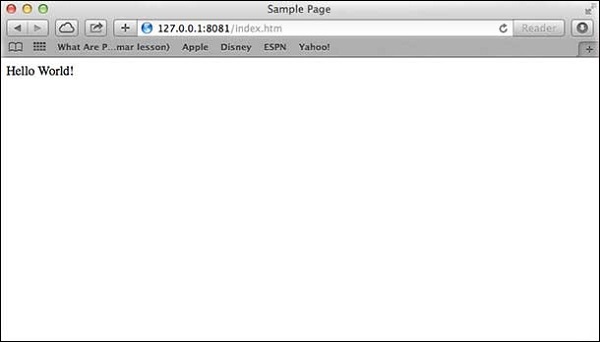
Open http://127.0.0.1:8081/index.htm in any browser to see the following result.
Verify the Output at server end.
Server running at http://127.0.0.1:8081/
Request for /index.htm received.
Creating Web client using Node
A web client can be created using http module. Let's check the following example.
Create a js file named client.js −
File: client.js
var http = require('http');

// Options to be used by request
var options = {
   host: 'localhost',
   port: '8081',
   path: '/index.htm'
};

// Callback function is used to deal with response
var callback = function(response){
   // Continuously update stream with data
   var body = '';
   response.on('data', function(data) {
      body += data;
   });

   response.on('end', function() {
      // Data received completely.
      console.log(body);
   });
}
// Make a request to the server
var req = http.request(options, callback);
req.end();
Now run the client.js from a different command terminal other than server.js to see the result −
$ node client.js
Verify the Output.
<html>
   <head>
      <title>Sample Page</title>
   </head>

   <body>
      Hello World!
   </body>
</html>
Verify the Output at server end.
Server running at http://127.0.0.1:8081/
Request for /index.htm received.
Express Overview
Express is a minimal and flexible Node.js web application framework that provides a robust set of features to develop web and mobile applications. It facilitates the rapid development of Node based Web applications. Following are some of the core features of Express framework −
- Allows to set up middlewares to respond to HTTP Requests.
- Defines a routing table which is used to perform different actions based on HTTP Method and URL.
- Allows to dynamically render HTML Pages based on passing arguments to templates.
Installing Express
Firstly, install the Express framework globally using NPM so that it can be used to create a web application using node terminal.
$ npm install express --save
The above command saves the installation locally in the node_modulesdirectory and creates a directory express inside node_modules. You should install the following important modules along with express −
- body-parser − This is a node.js middleware for handling JSON, Raw, Text and URL encoded form data.
- cookie-parser − Parse Cookie header and populate req.cookies with an object keyed by the cookie names.
- multer − This is a node.js middleware for handling multipart/form-data.
$ npm install body-parser --save
$ npm install cookie-parser --save
$ npm install multer --save
Hello world Example
Following is a very basic Express app which starts a server and listens on port 8081 for connection. This app responds with Hello World! for requests to the homepage. For every other path, it will respond with a 404 Not Found.
var express = require('express');
var app = express();

app.get('/', function (req, res) {
   res.send('Hello World');
})

var server = app.listen(8081, function () {
   var host = server.address().address
   var port = server.address().port

   console.log("Example app listening at http://%s:%s", host, port)
})
Save the above code in a file named server.js and run it with the following command.
$ node server.js
You will see the following output −
Example app listening at http://0.0.0.0:8081
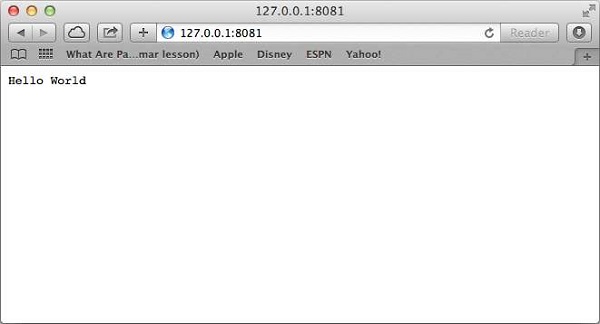
Open http://127.0.0.1:8081/ in any browser to see the following result.
Request & Response
Express application uses a callback function whose parameters are requestand response objects.
app.get('/', function (req, res) {
   // --
})
- Request Object − The request object represents the HTTP request and has properties for the request query string, parameters, body, HTTP headers, and so on.
- Response Object − The response object represents the HTTP response that an Express app sends when it gets an HTTP request.
You can print req and res objects which provide a lot of information related to HTTP request and response including cookies, sessions, URL, etc.
Basic Routing
We have seen a basic application which serves HTTP request for the homepage. Routing refers to determining how an application responds to a client request to a particular endpoint, which is a URI (or path) and a specific HTTP request method (GET, POST, and so on).
We will extend our Hello World program to handle more types of HTTP requests.
var express = require('express');
var app = express();

// This responds with "Hello World" on the homepage
app.get('/', function (req, res) {
   console.log("Got a GET request for the homepage");
   res.send('Hello GET');
})

// This responds a POST request for the homepage
app.post('/', function (req, res) {
   console.log("Got a POST request for the homepage");
   res.send('Hello POST');
})

// This responds a DELETE request for the /del_user page.
app.delete('/del_user', function (req, res) {
   console.log("Got a DELETE request for /del_user");
   res.send('Hello DELETE');
})

// This responds a GET request for the /list_user page.
app.get('/list_user', function (req, res) {
   console.log("Got a GET request for /list_user");
   res.send('Page Listing');
})

// This responds a GET request for abcd, abxcd, ab123cd, and so on
app.get('/ab*cd', function(req, res) {
   console.log("Got a GET request for /ab*cd");
   res.send('Page Pattern Match');
})

var server = app.listen(8081, function () {

   var host = server.address().address
   var port = server.address().port

   console.log("Example app listening at http://%s:%s", host, port)
})
Save the above code in a file named server.js and run it with the following command.
$ node server.js
You will see the following output −
Example app listening at http://0.0.0.0:8081
Now you can try different requests at http://127.0.0.1:8081 to see the output generated by server.js. Following are a few screens shots showing different responses for different URLs.
Screen showing again http://127.0.0.1:8081/list_user
Serving Static Files
Express provides a built-in middleware express.static to serve static files, such as images, CSS, JavaScript, etc.
You simply need to pass the name of the directory where you keep your static assets, to the express.static middleware to start serving the files directly. For example, if you keep your images, CSS, and JavaScript files in a directory named public, you can do this −
app.use(express.static('public'));
We will keep a few images in public/images sub-directory as follows −
node_modules
server.js
public/
public/images
public/images/logo.png
Let's modify "Hello Word" app to add the functionality to handle static files.
var express = require('express');
var app = express();

app.use(express.static('public'));

app.get('/', function (req, res) {
   res.send('Hello World');
})

var server = app.listen(8081, function () {
   var host = server.address().address
   var port = server.address().port

   console.log("Example app listening at http://%s:%s", host, port)

})
Save the above code in a file named server.js and run it with the following command.
$ node server.js
Now open http://127.0.0.1:8081/images/logo.png in any browser and see observe following result.
GET Method
Here is a simple example which passes two values using HTML FORM GET method. We are going to use process_get router inside server.js to handle this input.
<html>
   <body>

      <form action = "http://127.0.0.1:8081/process_get" method = "GET">
         First Name: <input type = "text" name = "first_name">  <br>
         Last Name: <input type = "text" name = "last_name">
         <input type = "submit" value = "Submit">
      </form>

   </body>
</html>
Let's save above code in index.htm and modify server.js to handle home page requests as well as the input sent by the HTML form.
var express = require('express');
var app = express();

app.use(express.static('public'));
app.get('/index.htm', function (req, res) {
   res.sendFile( __dirname + "/" + "index.htm" );
})

app.get('/process_get', function (req, res) {
   // Prepare output in JSON format
   response = {
      first_name:req.query.first_name,
      last_name:req.query.last_name
   };
   console.log(response);
   res.end(JSON.stringify(response));
})

var server = app.listen(8081, function () {
   var host = server.address().address
   var port = server.address().port
   console.log("Example app listening at http://%s:%s", host, port)

})
Accessing the HTML document using http://127.0.0.1:8081/index.htm will generate the following form −
Now you can enter the First and Last Name and then click submit button to see the result and it should return the following result −
{"first_name":"John","last_name":"Paul"}
POST Method
Here is a simple example which passes two values using HTML FORM POST method. We are going to use process_get router inside server.js to handle this input.
<html>
   <body>

      <form action = "http://127.0.0.1:8081/process_post" method = "POST">
         First Name: <input type = "text" name = "first_name"> <br>
         Last Name: <input type = "text" name = "last_name">
         <input type = "submit" value = "Submit">
      </form>

   </body>
</html>
Let's save the above code in index.htm and modify server.js to handle home page requests as well as the input sent by the HTML form.
var express = require('express');
var app = express();
var bodyParser = require('body-parser');

// Create application/x-www-form-urlencoded parser
var urlencodedParser = bodyParser.urlencoded({ extended: false })

app.use(express.static('public'));
app.get('/index.htm', function (req, res) {
   res.sendFile( __dirname + "/" + "index.htm" );
})

app.post('/process_post', urlencodedParser, function (req, res) {
   // Prepare output in JSON format
   response = {
      first_name:req.body.first_name,
      last_name:req.body.last_name
   };
   console.log(response);
   res.end(JSON.stringify(response));
})

var server = app.listen(8081, function () {
   var host = server.address().address
   var port = server.address().port

   console.log("Example app listening at http://%s:%s", host, port)

})
Accessing the HTML document using http://127.0.0.1:8081/index.htm will generate the following form −
Now you can enter the First and Last Name and then click the submit button to see the following result −
{"first_name":"John","last_name":"Paul"}
File Upload
The following HTML code creates a file uploader form. This form has method attribute set to POST and enctype attribute is set to multipart/form-data
<html>
   <head>
      <title>File Uploading Form</title>
   </head>

   <body>
      <h3>File Upload:</h3>
      Select a file to upload: <br />

      <form action = "http://127.0.0.1:8081/file_upload" method = "POST"
         enctype = "multipart/form-data">
         <input type="file" name="file" size="50" />
         <br />
         <input type = "submit" value = "Upload File" />
      </form>

   </body>
</html>
Let's save above code in index.htm and modify server.js to handle home page requests as well as file upload.
var express = require('express');
var app = express();
var fs = require("fs");

var bodyParser = require('body-parser');
var multer  = require('multer');

app.use(express.static('public'));
app.use(bodyParser.urlencoded({ extended: false }));
app.use(multer({ dest: '/tmp/'}));

app.get('/index.htm', function (req, res) {
   res.sendFile( __dirname + "/" + "index.htm" );
})

app.post('/file_upload', function (req, res) {
   console.log(req.files.file.name);
   console.log(req.files.file.path);
   console.log(req.files.file.type);
   var file = __dirname + "/" + req.files.file.name;

   fs.readFile( req.files.file.path, function (err, data) {
      fs.writeFile(file, data, function (err) {
         if( err ){
            console.log( err );
            }else{
               response = {
                  message:'File uploaded successfully',
                  filename:req.files.file.name
               };
            }
         console.log( response );
         res.end( JSON.stringify( response ) );
      });
   });
})

var server = app.listen(8081, function () {
   var host = server.address().address
   var port = server.address().port

   console.log("Example app listening at http://%s:%s", host, port)
})
Accessing the HTML document using http://127.0.0.1:8081/index.htm will generate the following form −
File Upload:
Select a file to upload:


NOTE: This is just dummy form and would not work, but it must work at your server.
Cookies Management
You can send cookies to a Node.js server which can handle the same using the following middleware option. Following is a simple example to print all the cookies sent by the client.
var express      = require('express')
var cookieParser = require('cookie-parser')

var app = express()
app.use(cookieParser())

app.get('/', function(req, res) {
   console.log("Cookies: ", req.cookies)
})
app.listen(8081)
What is REST architecture?
REST stands for REpresentational State Transfer. REST is web standards based architecture and uses HTTP Protocol. It revolves around resource where every component is a resource and a resource is accessed by a common interface using HTTP standard methods. REST was first introduced by Roy Fielding in 2000.
A REST Server simply provides access to resources and REST client accesses and modifies the resources using HTTP protocol. Here each resource is identified by URIs/ global IDs. REST uses various representation to represent a resource like text, JSON, XML but JSON is the most popular one.
HTTP methods
Following four HTTP methods are commonly used in REST based architecture.
- GET - This is used to provide a read only access to a resource.
- PUT - This is used to create a new resource.
- DELETE - This is used to remove a resource.
- POST - This is used to update a existing resource or create a new resource.
RESTful Web Services
A web service is a collection of open protocols and standards used for exchanging data between applications or systems. Software applications written in various programming languages and running on various platforms can use web services to exchange data over computer networks like the Internet in a manner similar to inter-process communication on a single computer. This interoperability (e.g., communication between Java and Python, or Windows and Linux applications) is due to the use of open standards.
Web services based on REST Architecture are known as RESTful web services. These webservices uses HTTP methods to implement the concept of REST architecture. A RESTful web service usually defines a URI, Uniform Resource Identifier a service, which provides resource representation such as JSON and set of HTTP Methods.
Creating RESTful for A Library
Consider we have a JSON based database of users having the following users in a file users.json:
{
   "user1" : {
      "name" : "mahesh",
   "password" : "password1",
   "profession" : "teacher",
   "id": 1
   },
   "user2" : {
      "name" : "suresh",
   "password" : "password2",
   "profession" : "librarian",
   "id": 2
   },
   "user3" : {
      "name" : "ramesh",
   "password" : "password3",
   "profession" : "clerk",
   "id": 3
   }
}
Based on this information we are going to provide following RESTful APIs.
| S. N. | URI | HTTP Method | POST body | Result |
|---|---|---|---|---|
| 1 | listUsers | GET | empty | Show list of all the users. |
| 2 | addUser | POST | JSON String | Add details of new user. |
| 3 | deleteUser | DELETE | JSON String | Delete an existing user. |
| 4 | :id | GET | empty | Show details of a user. |
I'm keeping most of the part of all the examples in the form of hard coding assuming you already know how to pass values from front end using Ajax or simple form data and how to process them using express Request object.
List Users
Let's implement our first RESTful API listUsers using the following code in a server.js file:
server.jsvar express = require('express'); var app = express(); var fs = require("fs"); app.get('/listUsers', function (req, res) { fs.readFile( __dirname + "/" + "users.json", 'utf8', function (err, data) { console.log( data ); res.end( data ); }); }) var server = app.listen(8081, function () { var host = server.address().address var port = server.address().port console.log("Example app listening at http://%s:%s", host, port) })
Now try to access defined API using URL: http://127.0.0.1:8081/listUsers and HTTP Method : GET on local machine using any REST client. This should produce following result:
You can change given IP address when you will put the solution in production environment.
{
   "user1" : {
      "name" : "mahesh",
      "password" : "password1",
      "profession" : "teacher",
      "id": 1
   },
   "user2" : {
      "name" : "suresh",
      "password" : "password2",
      "profession" : "librarian",
      "id": 2
   },
   "user3" : {
      "name" : "ramesh",
      "password" : "password3",
      "profession" : "clerk",
      "id": 3
   }
}
Add User
Following API will show you how to add new user in the list. Following is the detail of the new user:
user = {
   "user4" : {
      "name" : "mohit",
      "password" : "password4",
      "profession" : "teacher",
      "id": 4
   }
}
You can accept the same input in the form of JSON using Ajax call but for teaching point of view, we are making it hard coded here. Following is the addUser API to a new user in the database:
server.jsvar express = require('express'); var app = express(); var fs = require("fs"); var user = { "user4" : { "name" : "mohit", "password" : "password4", "profession" : "teacher", "id": 4 } } app.post('/addUser', function (req, res) { // First read existing users. fs.readFile( __dirname + "/" + "users.json", 'utf8', function (err, data) { data = JSON.parse( data ); data["user4"] = user["user4"]; console.log( data ); res.end( JSON.stringify(data)); }); }) var server = app.listen(8081, function () { var host = server.address().address var port = server.address().port console.log("Example app listening at http://%s:%s", host, port) })
Now try to access defined API using URL: http://127.0.0.1:8081/addUser and HTTP Method : POST on local machine using any REST client. This should produce following result:
{
"user1":{"name":"mahesh","password":"password1","profession":"teacher","id":1},
"user2":{"name":"suresh","password":"password2","profession":"librarian","id":2},
"user3":{"name":"ramesh","password":"password3","profession":"clerk","id":3},
"user4":{"name":"mohit","password":"password4","profession":"teacher","id":4}
}
Show Detail
Now we will implement an API which will be called using user ID and it will display the detail of the corresponding user.
server.jsvar express = require('express'); var app = express(); var fs = require("fs"); app.get('/:id', function (req, res) { // First read existing users. fs.readFile( __dirname + "/" + "users.json", 'utf8', function (err, data) { var users = JSON.parse( data ); var user = users["user" + req.params.id] console.log( user ); res.end( JSON.stringify(user)); }); }) var server = app.listen(8081, function () { var host = server.address().address var port = server.address().port console.log("Example app listening at http://%s:%s", host, port) })
Now try to access defined API using URL: http://127.0.0.1:8081/2 and HTTP Method : GET on local machine using any REST client. This should produce following result:
{"name":"suresh","password":"password2","profession":"librarian","id":2}
Delete User
This API is very similar to addUser API where we receive input data through req.body and then based on user ID we delete that user from the database. To keep our program simple we assume we are going to delete user with ID 2.
server.jsvar express = require('express'); var app = express(); var fs = require("fs"); var id = 2; app.delete('/deleteUser', function (req, res) { // First read existing users. fs.readFile( __dirname + "/" + "users.json", 'utf8', function (err, data) { data = JSON.parse( data ); delete data["user" + 2]; console.log( data ); res.end( JSON.stringify(data)); }); }) var server = app.listen(8081, function () { var host = server.address().address var port = server.address().port console.log("Example app listening at http://%s:%s", host, port) })
Now try to access defined API using URL: http://127.0.0.1:8081/deleteUserand HTTP Method : DELETE on local machine using any REST client. This should produce following result:
{"user1":{"name":"mahesh","password":"password1","profession":"teacher","id":1},
"user3":{"name":"ramesh","password":"password3","profession":"clerk","id":3}}

Comments
Post a Comment